Everything in Frontend Dev, page 24
How do nested layouts work in the App Router?
Tests nested layout composition and state persistence in the App Router. Good answers explain root wraps dashboard wraps page, dashboard state survives child navigation, and only the page segment rerenders.
Recommended App Router pattern to fetch shared data once for child routes
Tests App Router layout constraints and request deduplication. Answer: wrap the user fetch in React cache, call it from layout and child Server Components, and let Next.js deduplicate. Red flag: layout prop drilling or getServerSideProps.
What are Next.js Route Groups and a practical use case?
Tests App Router conventions organizing routes without changing URLs. A good answer names parenthesized folders like (shop) removed from the path, cites multiple layouts per section, and keeps URLs clean. Red flag: confusing them with dynamic [slug] segments.
How do loading.js and error.js integrate with Suspense and Error Boundaries?
Tests grasp of App Router conventions wrapping React primitives. loading.js suspends its segment for instant navigation feedback; error.js adds a client Error Boundary for child segment crashes. Wrong: assuming they are server-only or replace manual usage.
How do you create a /blog/[slug] route and access the slug value?
Use a [slug] directory with page.js; in App Router read the params prop in server components or useParams in client components.
What is layout.js and how does it differ from shared headers?
Layout.js persists across navigations without remounting; a shared header in each page.js remounts and loses state.
How do you create a /dashboard route in Next.js App Router?
Tests App Router file-system routing and the page.js convention. Good answer: create app/dashboard/page.js with a default export, note that only page.js creates an addressable route, and layouts do not.

MSW vs mocking fetch or axios directly in Jest tests
MSW intercepts HTTP via Service Workers and Node, staying client-agnostic; direct fetch or axios mocks couple tests to specific libraries.
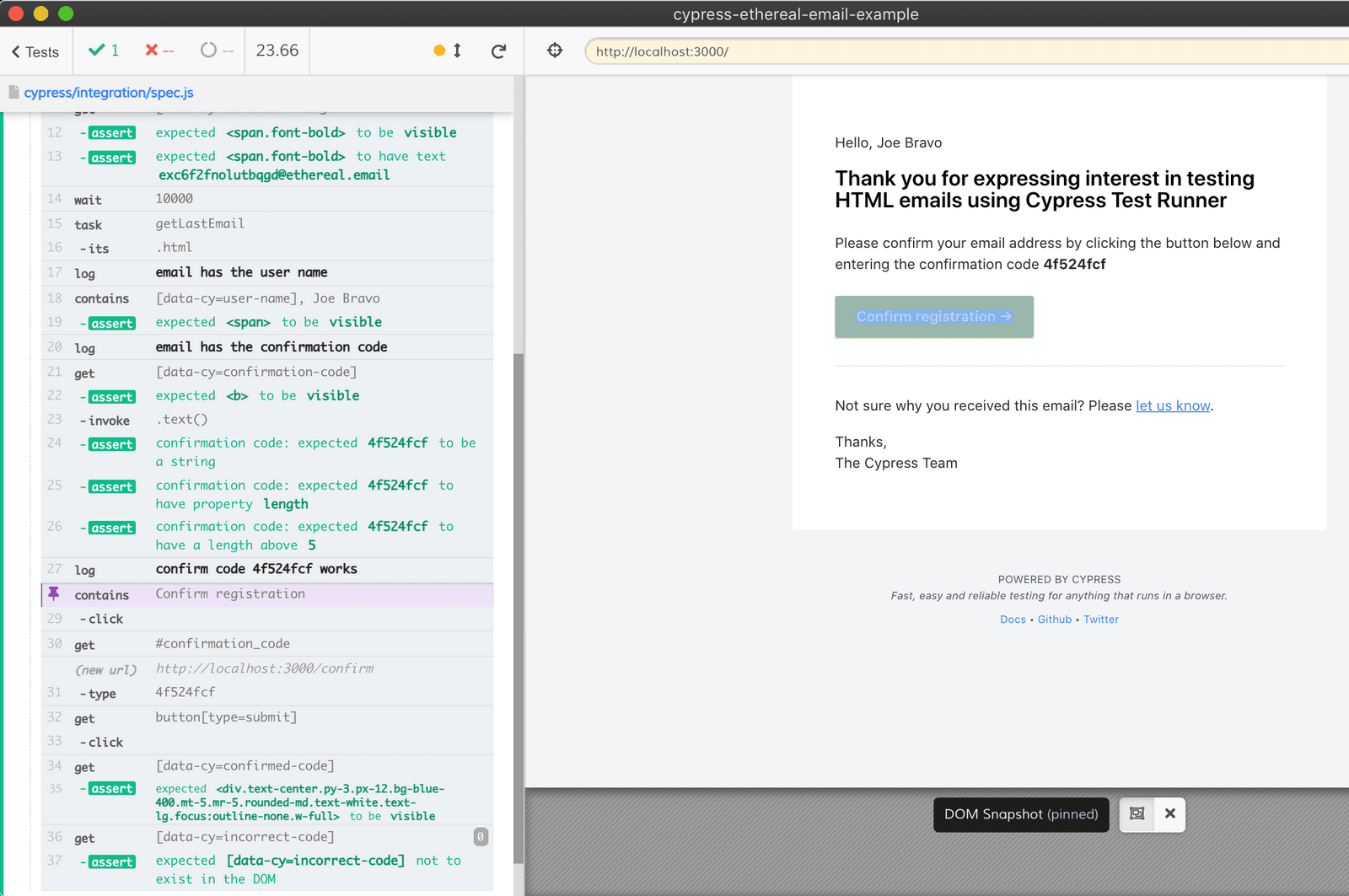
Cypress auth strategies: UI login vs programmatic session
Tests your grasp of Cypress test isolation and speed tradeoffs. A strong answer contrasts slow UI login (ideal for the auth flow itself) against programmatic auth via cy.request or cy.session (fast setup for protected routes).
How do you balance unit, integration, and end-to-end tests in Next.js?
This tests allocation of test types across Next.js boundaries. Propose 70 percent unit tests for utilities, 20 percent integration tests for data fetching, and 10 percent end-to-end tests for critical flows, weighing cost and confidence.

Difference between jest.fn, jest.spyOn, and jest.mock in React
Tests whether you distinguish Jest's three mocking scopes. Good answers: jest.fn for standalone callbacks; jest.spyOn to observe existing methods; jest.mock to swap entire modules. Red flag: using them interchangeably or saying spyOn replaces modules.
How do you unit test a custom React hook like useCounter?
This tests whether you know hooks must run inside a component and that renderHook provides that scaffold. A strong answer names renderHook and act, explains result.current access, and warns against calling hooks directly.
Test a React component fetching async data on mount
Whether you can assert on asynchronous DOM updates without race conditions. Mock the API, render, then use findBy or waitFor to assert on loading and loaded states. Red flag: using getBy right after render or forgetting to await async queries.
What are fireEvent and user-event, and why prefer user-event?
FireEvent triggers single DOM events; user-event simulates full interactions with focus checks. Prefer user-event.

How would you unit test a React title component?
This tests React Testing Library's user-centric approach and Jest basics. A strong answer renders the component, queries the h1 by role or text, and asserts it is in the document. A red flag is using Enzyme shallow rendering or testing internal state.
How does React Testing Library's guiding principle influence query choice?
This tests whether you prioritize user-visible attributes over implementation details when selecting queries. A strong answer ranks getByRole, label, and text above testId because users interact with meaning, not data attributes.
What is state hydration in Next.js SSR with Redux or Zustand?
Hydration attaches listeners to server HTML; serialize state to an escaped script tag; boot client store before React or markup is discarded.

Explain atomic state management and how it differs from Redux
This tests bottom-up vs top-down architecture. Good response contrasts atom graphs with Redux's monolithic store, notes atoms avoid extra rerenders sans selectors, and flags granular subscriptions.
How would you handle an async API call in Redux Toolkit versus Zustand?
Tests structured async state machines versus lightweight patterns. A strong answer contrasts createAsyncThunk's pending/fulfilled/rejected lifecycles with Zustand's direct set() in async functions, noting Redux's traceability trade-off.
How do you select a single property and prevent extra re-renders?
Tests selector granularity and reference equality in subscriptions. Great answer: return a primitive via a focused selector; for objects, memoize with createSelector or pass shallowEqual. Red flag: reaching for useMemo or React.memo before fixing the selector.
We are hiring for this. Every open role lists the topics its interview covers, so you can prepare for the real thing rather than guessing.
See open roles