All bites
The whole library, newest first. Filter by what you are here for, or pick a topic if you already know.
4247 bites
Page 8
runApp(): The Entry Point to Your Flutter UI
runApp() is the starting gun for your Flutter UI, taking your root widget and painting it to the screen. It's the first function called in main(). A common misconception is that calling it again is a slow restart; it actually just updates the UI efficiently.
Flutter Widgets: Everything is a Widget
Think of Flutter UIs as LEGOs. Every element, from a button to the padding around it, is a self-contained 'widget' you compose to build your screen. This applies to layout, text, and even alignment.
StatelessWidget: Flutter's Immutable UI Blueprint
A StatelessWidget is a 'frozen' UI blueprint, built once with its configuration and never changing its own state. Use it for static UI like icons or text labels. The footgun is using it for UI that must react to internal data changes.
Flutter's build(): Why It Lives on State, Not the Widget
Flutter's build() method turns state into UI. It's on the State object, not the StatefulWidget, to ensure it always paints with the latest data. The framework calls it on init, after setState(), or when dependencies change.
BuildContext: Your Widget's Address in the Tree
A BuildContext is a widget's address in the Flutter tree, letting it find ancestors like themes or navigators. It's used for Theme.of(context) or Scaffold.of(context). The key footgun: a widget's context can't find its own children, only its parents.
StatefulWidget and State: Two Parts of a Whole
A StatefulWidget is an immutable blueprint, while its separate State object holds the mutable data. The widget is disposable; the state persists across rebuilds. Use this for interactive UI like forms or counters.
Flutter's setState(): Triggering UI Updates
setState() tells Flutter "my data changed, so rebuild the UI." It's not the change itself, but the notification that a change happened. Use it in a StatefulWidget's State class when events modify data your build() method uses.
Flutter's State Lifecycle: From Creation to Disposal
A Flutter State object outlives its widget configuration. The framework manages its journey from creation (initState) to permanent removal (dispose), calling methods like build along the way. This governs all StatefulWidgets.
InheritedWidget: Propagate Data Down the Tree
InheritedWidget provides data to any descendant that asks, avoiding prop drilling. It's the basis for Theme.of(context) and other ambient state. The common footgun is calling .of(context) from a context that's an ancestor, not a descendant, of the widget.
Flutter's Three Trees: Widget, Element, and RenderObject
Flutter separates UI into three trees. Widgets are cheap blueprints. Elements are the stateful managers that persist across frames. RenderObjects do the expensive layout and painting. Understanding this separation is key to mastering Flutter's performance.
Row and Column: Arranging Widgets Without Scrolling
Think of Row and Column as rigid containers for laying out widgets horizontally or vertically. Use them for simple, fixed layouts like button bars. The footgun: unbounded children like Text will overflow; wrap them in an Expanded widget to fill remaining…

Flutter's Stack: Layering Widgets on Top of Each Other
Flutter's Stack widget lets you overlap children, like layering papers. The first child is at the bottom, the last is on top. Use it for text over images or gradient overlays. The footgun: you can only position children relative to the stack's edges.

Flutter's Container: The Ultimate Box Widget
Think of Container as a customizable box for your UI. It's Flutter's multi-tool for combining layout, styling, and positioning in a single widget. Use it to add padding, margins, borders, or background colors.
Expanded & Flexible: Claiming Space in Flutter Layouts
Expanded and Flexible widgets manage space in a Row or Column. Expanded is greedy, forcing its child to fill all available space. Flexible is polite, allowing its child to grow but not requiring it. Use them to prevent overflow errors.
SingleChildScrollView: When One Widget Needs to Scroll
SingleChildScrollView is an emergency scrollbar for one widget that usually fits on screen. Use it when a layout might overflow on small devices. The footgun: it renders its entire child at once, so never use it for long lists—use ListView instead.
Flutter's Box Constraint System: Parents Rule
In Flutter, parents tell children their size limits, not their size. A widget must obey its parent's constraints (min/max width/height), but it chooses its own size within those bounds. The footgun is trying to size a child widget against its parent's rules.
MediaQuery: Reading Device Properties Efficiently
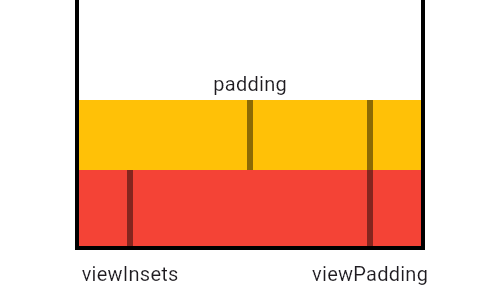
MediaQuery is your widget's window to the device, providing screen size, orientation, and safe areas. Use it to build responsive UIs that avoid system elements like notches or the keyboard. The footgun: MediaQuery.of(context) rebuilds on any change.
LayoutBuilder: Build Widgets Based on Parent Size
LayoutBuilder lets your widget ask its parent "how much space do I have?" before deciding what to build. Use it for responsive layouts, like showing a Row on wide screens and a Column on narrow ones.
Flutter's Wrap Widget: The Row That Won't Overflow
Flutter's Wrap widget is like text-wrapping for your UI. It arranges children in a row or column, automatically flowing them onto a new line when space runs out. It's perfect for dynamic lists of tags or chips.
Flutter's FittedBox: Scale Any Widget to Fit
FittedBox scales its single child to fit an allocated space, like CSS's object-fit but for any widget. It's perfect for making an icon fill a button or ensuring text fits a container. The footgun: it fails in unconstrained parents like a Row or Column.