Intermediate concepts in UI Design & Figma, page 3
Figma Prototypes: Build Interactive Flows, Not Just Screens
Figma prototypes turn static designs into interactive user journeys by connecting frames. Use them to test user flows, present to stakeholders, or get feedback before writing code. The footgun: a single top-level frame can only be one flow's starting point.
Figma's Smart Animate: Motion Without Keyframes
Figma's Smart Animate creates fluid animations by tweening layers between frames. It's perfect for prototypes with expanding cards, sliding toggles, or parallax effects.
Figma Instance Overrides: Local Changes, Global Components
Instance overrides let you customize a component copy without breaking its link to the main. Use them to change a button's text or swap an icon for a specific context. The footgun: Overrides are lost when swapping variants if layer names don't match.

Base Component Pattern: Your Design System's Template
Think of a base component as a master template for UI elements. Changes to the master instantly update every copy, ensuring consistency. Use it for repeated elements like buttons or icons that need slight variations.
Figma Prototype Flows: Isolate User Journeys
Prototype Flows are named entry points for testing distinct user journeys in one file. Instead of separate pages for 'Sign Up' and 'Checkout,' create a flow for each. This keeps complex designs organized.
Prototype Triggers: Defining How Users Interact
A prototype trigger is the 'if' in an 'if-then' UI interaction, defining the user input that causes a change. It's used in design tools to simulate app behavior, from clicks to drags.
Prototype Animations: Guiding Users Between States
Think of prototype animations as visual storytelling, showing the relationship between a user's action and the resulting UI state. Use them to show menus expanding or pages sliding in.

Design System Governance: Preventing UI Drift
Design system governance is the constitution for your UI, defining how components evolve, not just what they are. It prevents the slow drift where production code diverges from the Figma library as teams make local exceptions.
Versioning a Design System with Semantic Versioning
Use Semantic Versioning (MAJOR.MINOR.PATCH) to signal the impact of design system changes. This tells teams if an update is a breaking change (MAJOR), a new feature (MINOR), or a bug fix (PATCH).

Drive Design System Adoption, Don't Just Build It
Treat your design system like an internal product, not a one-off project. To drive adoption, show quick, measurable wins and offer tiered onboarding for different roles.
Design System Docs: The Product, Not the Afterthought
Treat your design system documentation as a product, not a cleanup task. It's the instruction manual that prevents your component library from being misused. It's essential for scaling a design system to ensure consistency and speed up onboarding.
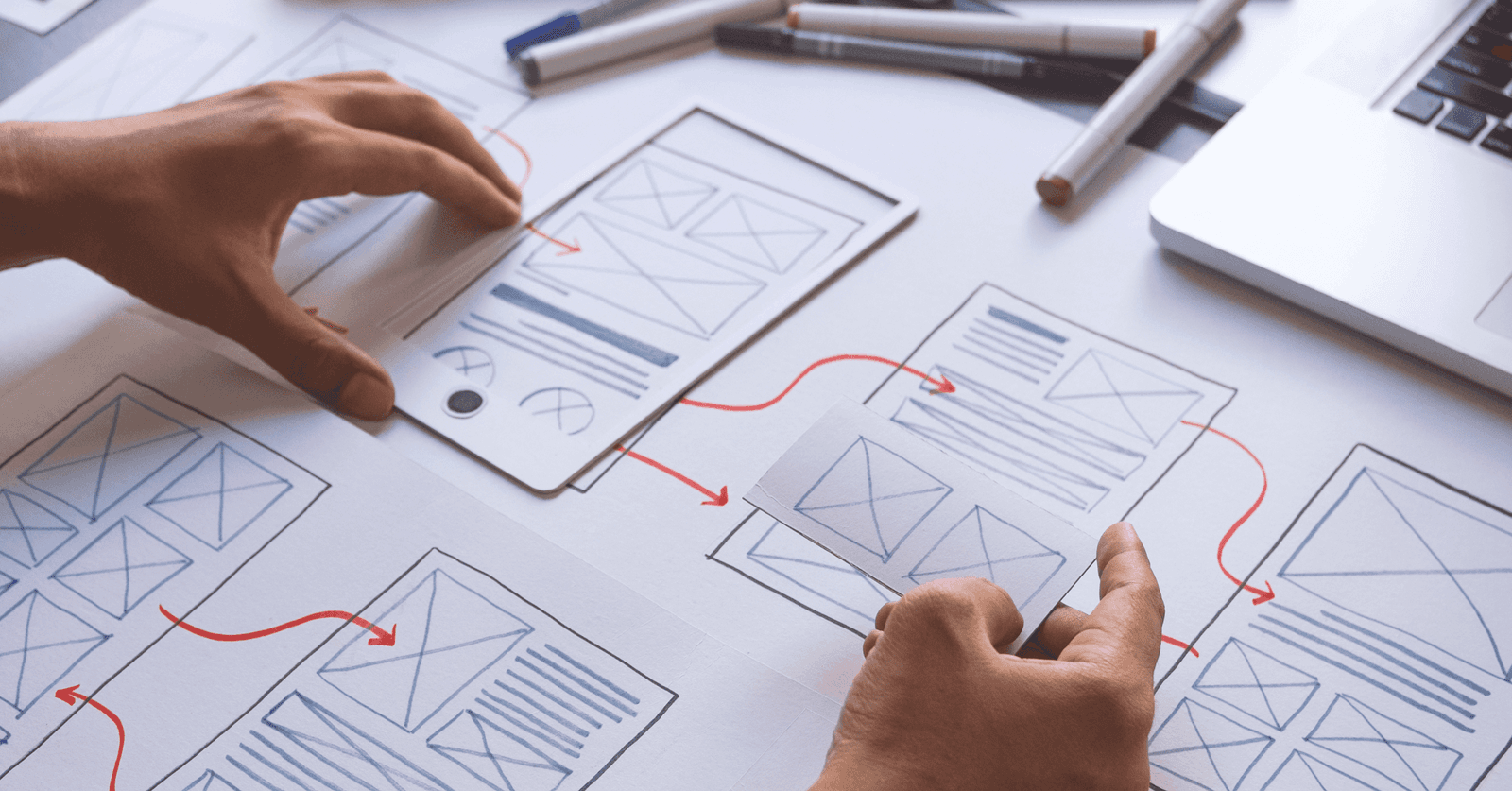
Figma Comments: Annotate Designs for Better Handoff
Figma comments are the inline documentation for your designs, bridging the gap between a static screen and its intended behavior. Use them to clarify interactions and edge cases directly on the canvas. The footgun is assuming the design speaks for itself.

Real-time Collaboration: Figma's 'Multiplayer' Model
Real-time collaboration uses a central server as the single source of truth for a file. Instead of passing copies, users connect to the same live document, enabling simultaneous editing in tools like Figma.
Figma Comments: Your Team's Built-in Critique Layer
Think of Figma comments as a critique layer on your design. They tie feedback directly to specific elements for asynchronous review, letting you iterate faster without constant meetings. The footgun: Over-mentioning creates notification fatigue.
Figma Pages: The Folders Inside Your Files
Think of Figma pages as folders within a single file. They let you organize complex projects by giving you separate canvases for different design stages, user flows, or component libraries. The main footgun: free plans limit you to only three pages per file.
Figma Permissions Cascade Downward
Figma permissions flow downward: team access opens every project and file inside it. Use share links for quick reviews, but direct invites gate specific files. Inviting someone to a team exposes every project, while a file invite keeps the rest hidden.
Figma Variables: Grouping Primitives with Collections
Think of Figma variables as raw ingredients. A collection is a recipe book ('Spacing') and modes are variations ('Mobile'). This lets you manage design tokens, themes, and responsive layouts.
Figma: Local vs. Published Library Assets
Local Figma assets are private drafts; published assets are the team's shared toolkit. Use this to manage a central design system, but remember: if you don't publish your changes, your team will be using outdated components and variables.
Figma Widgets: Live Apps on Your Canvas
Figma Widgets are like mini-apps living on your canvas that everyone interacts with at once, unlike single-user plugins. Use them for collaborative tools like live polls or data tables.
Realistic UI Motion with Easing Curves
Easing curves control animation acceleration to make UI motion feel natural, not robotic. Use 'Ease Out' for elements entering the screen and 'Ease In' for those leaving. The footgun is overusing one curve; this makes motion feel unnaturally perfect.
We are hiring for this. Every open role lists the topics its interview covers, so you can prepare for the real thing rather than guessing.
See open roles