Easy everything in Mobile Dev, page 14
TweenAnimationBuilder: Animate Anything Implicitly
TweenAnimationBuilder animates any widget property without a complex AnimationController. Just give it a target value, duration, and curve. Use it for one-off animations where a full controller is overkill.
AnimatedContainer: Simple UI Animations Without Controllers
AnimatedContainer is a 'fire-and-forget' animation widget. It automatically animates its own properties like size and color when they change. Use it for simple UI state changes, like a button that grows when tapped. It only animates itself, not its child.
Reading and Writing Files in Dart
Treat files as either a single string for simple cases or a stream of data for large ones. Use dart:io for saving user settings or processing logs. The main footgun is using synchronous methods like readAsStringSync, which can freeze your app.
path_provider: Find Platform-Specific File Paths
path_provider asks the OS for standard file paths instead of you guessing. Use it to find the correct documents, temp, or cache directories on any platform. The footgun: not all paths exist on all systems, so always check for null returns.
shared_preferences for Simple On-Device Storage
shared_preferences is Flutter's go-to for simple on-device key-value storage, like a persistent dictionary for user settings. Use it to save a dark mode toggle or high score. Crucially, writes are not guaranteed, so don't use it for critical data.
FutureBuilder: Handling Async UI in Flutter
FutureBuilder rebuilds UI based on an async operation's state, showing loading, error, or data. Use it for network requests or slow computations. Footgun: Never create the Future inside build; it will restart on every rebuild, causing an infinite loading…
Manual JSON Serialization with fromJson/toJson
Manually map your Dart objects to JSON by writing your own fromJson and toJson methods. This is ideal for simple data models or quick prototypes where code generation is overkill.
JSON in Dart: Using `dart:convert`
dart:convert is Dart's built-in translator for JSON. It turns Dart Maps into JSON strings (jsonEncode) for APIs and file storage, and parses JSON strings back into Maps (jsonDecode). The footgun: jsonDecode returns a generic Map, not your custom class.
Dart's `http` Package: Simple Requests vs. Composable Clients
Dart's http package simplifies web requests. Use top-level functions like http.get() for one-off calls, or a Client for persistent connections. Forgetting to call client.close() is a common footgun that leaks resources.
ValueNotifier: Notifies on Replacement, Not Mutation
ValueNotifier is a simple state holder that tells widgets to rebuild when its single value is replaced. It's great for immutable data like a boolean toggle or counter.
Provider: Pass Data Down Your Widget Tree
Think of Provider as a delivery service for your app's data, passing it down the widget tree without sending it through every widget's constructor. It's a lightweight way to manage state. The footgun: never use .value to create a new object.
Flutter Named Routes: Navigate with Strings, Not Widgets
Think of named routes as URL paths for your app's screens. Instead of building a screen widget on the spot, you just tell Flutter "go to '/profile'". This is ideal for centralizing navigation in large apps and for enabling deep linking.
Imperative Navigation: Pushing and Popping Screens
Think of app screens as a stack of cards. You push a new screen onto the top to show it and pop it off to go back. It's ideal for linear flows like list-to-detail. The footgun: popping the last screen closes the app.
MaterialPageRoute: The Page in Your Navigator Stack
Think of Navigator as a stack of screens. MaterialPageRoute wraps your new screen widget, defining its platform-specific transition (slide on iOS, zoom on Android). You use it with Navigator.push to show a new screen.
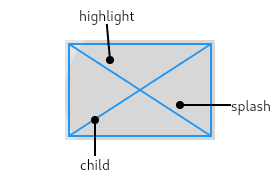
InkWell: Adding Material Splash Effects
InkWell adds a Material Design 'splash' effect to any widget on tap. Think of it as ink spreading inside the surface you touch. Use it to make non-interactive widgets like images respond to taps. The splash won't appear if an opaque widget is between it.
TextEditingController: Syncing UI and Code for Text Fields
A TextEditingController is the two-way link between your code and a text field's state. Use it to read user input, set initial text, or move the cursor. A common footgun is forgetting to call dispose() on the controller, which leads to memory leaks.
Flutter's TextField: Capturing User Input
Flutter's TextField is the standard widget for user text input. Use it for search bars or login forms, and manage its state with a TextEditingController for full control. The biggest footgun is forgetting to dispose its controller, causing memory leaks.
Flutter's Three Main Material Buttons
Flutter's Material buttons signal emphasis. Use ElevatedButton for primary actions (Save), OutlinedButton for secondary (Next), and TextButton for tertiary (Cancel). The footgun is choosing a button for its looks, not its place in the action hierarchy.
GestureDetector: Making Any Widget Interactive
GestureDetector is an invisible wrapper that makes any widget interactive. Use it to add an onTap to a Container or custom widget. The biggest footgun: when nested, only the innermost detector's callback for a given gesture will fire.
SingleChildScrollView: When One Widget Needs to Scroll
SingleChildScrollView is an emergency scrollbar for one widget that usually fits on screen. Use it when a layout might overflow on small devices. The footgun: it renders its entire child at once, so never use it for long lists—use ListView instead.
We are hiring for this. Every open role lists the topics its interview covers, so you can prepare for the real thing rather than guessing.
See open roles