Concepts in UI Design & Figma, page 4
Figma's Handoff Status: A Traffic Light for Devs
Think of Figma's handoff status as a traffic light for your designs, signaling what's safe to build. Designers mark sections Ready for dev, and Figma automatically flags them as Changed if modified.
Figma for VS Code: Designs Inside Your Editor
Embed a live Figma inspector in your IDE to stop switching contexts. Use it to grab code snippets, check measurements, or reply to comments without leaving VS Code. The footgun: it's for inspection, not editing—you can't change the design itself.
Figma Versioning for Clean Developer Handoff
Treat Figma's version history like a Git commit log, not just an undo. Create named versions to give developers a stable, immutable design target for handoff, preventing them from building against a file that's still in flux.
Figma Dev Mode: Visually Diff Your UI
Treat UI changes like a code diff. Figma's Dev Mode lets you visually compare component versions side-by-side or as an overlay. This helps you see exactly what changed between handoffs, preventing drift. The footgun is ignoring the code and property diffs.
Figma Branching: A Sandbox for Your Design System
Branching in Figma is like Git for designers. It creates a safe copy (a branch) of your main file for experimentation, perfect for trying new ideas or updating components without risk.
Figma's Organization Plan: Structure and Permissions
Think of a Figma Org as a company-wide container for all design work, providing unlimited teams, SSO, and shared libraries. The main footgun: confusing paid seats with permissions. A seat grants product access, but permissions control a user's actions.
Figma Library Analytics: Measure Your Design System's Impact
Treat your design system like a product by measuring its adoption. Figma's Library Analytics shows which components and styles are actually used, guiding decisions on what to build, improve, or deprecate.
Private Plugins: Internal Tools, Not Public Apps
Private Figma plugins are internal tools, not public apps, built for your team's eyes only. Use them to connect to internal APIs or automate workflows with a private design system. The footgun is building one when a simpler script would suffice.
Figma String Variables: Manage UI Text in One Place
A string variable is a single source of truth for UI text. Instead of typing text directly, you apply a variable. This is key for managing translations or different component states, like a button label changing from 'Submit' to 'Submitting...'.
Mathematical Expressions in Figma Prototypes
Use variable modes as contexts for math in Figma prototypes. Instead of creating one variable per item, a single number variable with multiple modes lets expressions calculate independent counts, like separate produce counters in a shopping cart.
Figma: Order Matters in Chained Actions
Think of Figma actions as a script running sequentially on one trigger. This lets you build complex logic, like updating a variable and navigating based on its new value. The footgun: order is critical, as actions execute top-to-bottom.
Automated Design Linting: Your Design System's Spellchecker
Design linting is like a spellchecker for your UI, automatically flagging inconsistencies against your design system. It catches missing styles or wrong colors before handoff, ensuring consistency. The footgun: a 'clean' file isn't necessarily a good design.
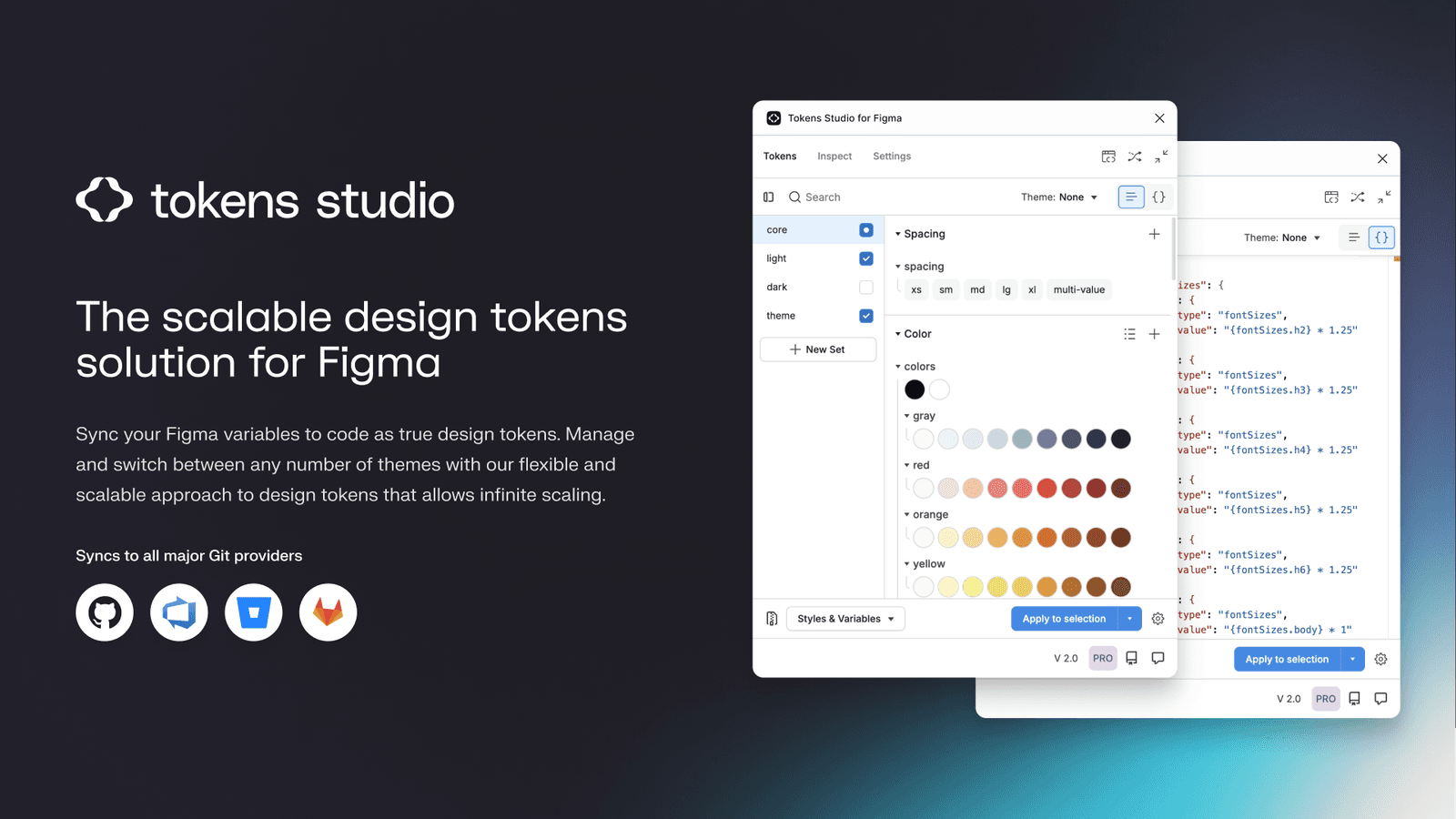
Tokens Studio: Git-Backed Design Tokens in Figma
Tokens Studio treats design tokens like code, using a Git repo as the single source of truth instead of a Figma file. It syncs tokens across files and bridges the gap to developer workflows, enabling a true single source of truth for your design system.
Figma Codegen: Turn Designs into Framework-Specific Code
Figma codegen plugins are custom translators for Dev Mode, turning designs into framework-specific code. Use them to generate React components or extract i18n strings.
Figma's Plugin API: Read and Write to the Canvas Tree
Think of a Figma file as a node tree. The Plugin API gives your JavaScript code read/write access to this tree to automate design tasks. Use it to batch-edit layers or generate content. The main footgun: files load dynamically, so you must use async APIs.
Building Custom Figma Widgets with the Widget API
Build interactive objects on the Figma canvas using a React-like API. The Widget API uses components, functions, and hooks to create tools like polls or timers. The footgun is forgetting useSyncedState, which breaks your widget in multiplayer sessions.
Information Architecture: The Blueprint for Your App
Think of Information Architecture (IA) as the blueprint for an app, defining its structure before visual design begins. It dictates navigation and content organization to make things findable.
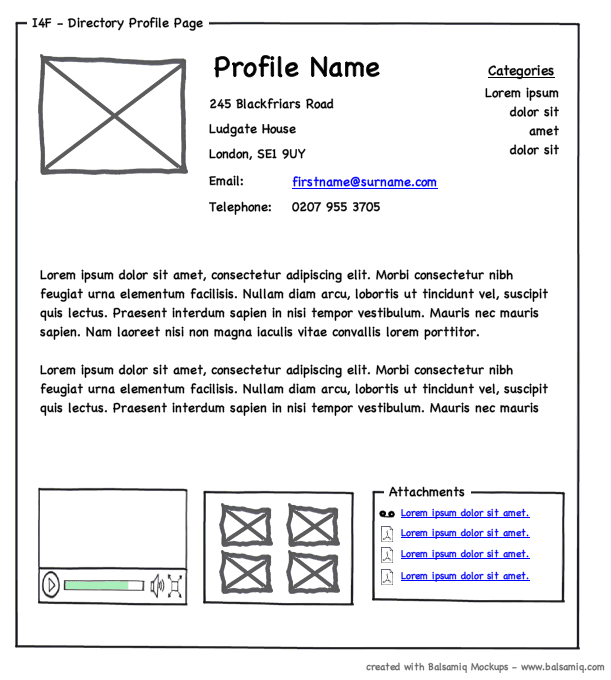
Wireframing: The Blueprint for Your UI
A wireframe is a UI blueprint that shows a screen's structure, not its visual design. Use it early to agree on layout and function before getting lost in colors and fonts. The footgun is adding too much detail, which distracts from its core purpose.
Iterative Design: Build, Test, Learn, Repeat
Iterative design is a cycle of building, testing, and refining based on user feedback. It's standard for app development, where you ship a basic version and improve it with data. The footgun is mistaking any change for iteration; it requires real user testing.
Low-Fi vs. High-Fi Prototypes: Test Ideas Fast vs. Polish for Realism
Low-fi prototypes are quick sketches to test core ideas and flows. High-fi prototypes are detailed, interactive mockups that look and feel like the final product. Use low-fi early for brainstorming and high-fi late for usability testing.
We are hiring for this. Every open role lists the topics its interview covers, so you can prepare for the real thing rather than guessing.
See open roles