Advanced everything in Design & UX, page 8
Institutional Review Board (IRB): Your Research Ethics Checkpoint
An IRB is an ethics committee that acts as a mandatory checkpoint for research involving human subjects. Before running user studies or surveys, especially in academic or medical settings, you must get their approval.

UX Research Repository: Your Team's Shared Brain
A research repository is your team's shared brain for user insights, preventing knowledge from getting lost. It centralizes reports, recordings, and notes, making them searchable to prevent duplicate studies. The main footgun is poor adoption.
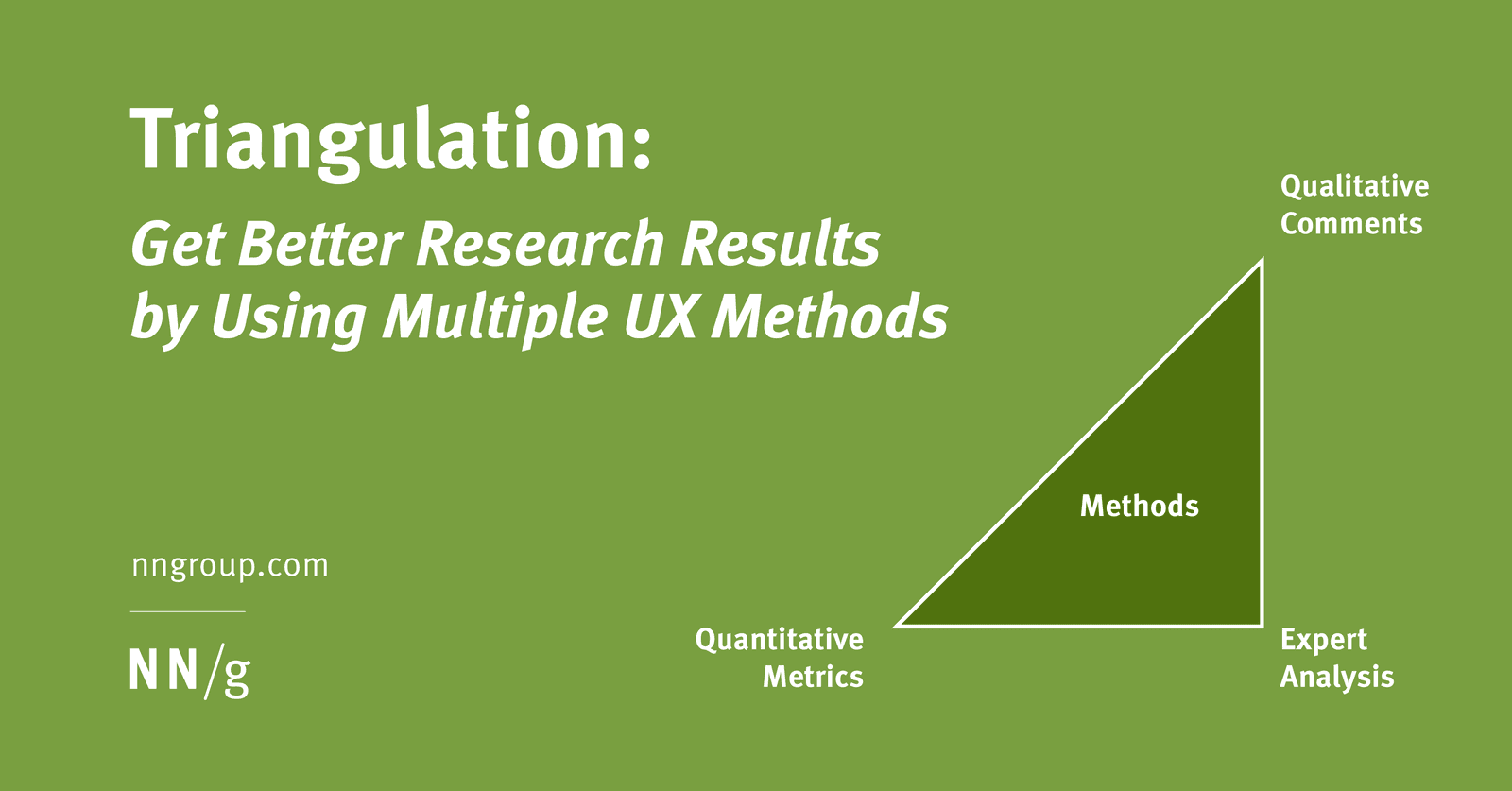
Triangulation: Stronger UX Insights from Multiple Angles
Triangulation strengthens research by combining methods to cover each one's blind spots. For example, pair a quantitative study showing *what* users do with a qualitative one explaining *why*. The footgun is treating a single data source as definitive proof.
UX Ethics: A Professional Code of Conduct
UX ethics formalizes your responsibility to users. It's about centering human well-being, being transparent with data, and actively preventing harm. This guides decisions from research to launch.
Card Sorting: Let Users Design Your Navigation
Card sorting reveals your users' mental models by having them group topics. Use this to design intuitive navigation menus and information architecture. The footgun is testing with internal teams instead of actual users or subject matter experts.
Heuristic Evaluation: An Expert UI Review on a Budget
Heuristic evaluation is like having an expert proofread your UI against a checklist of common usability flaws. It's a fast, cheap way to catch problems before writing code, but its value depends entirely on the evaluator's skill.
Mental Models: Design for What Users Believe
A mental model is the user's internal story of how your UI works, based on past experiences, not your design spec. This is why users expect your site to work like others they've used. The footgun is assuming users share your expert model; they don't.
Building Custom Figma Widgets with the Widget API
Build interactive objects on the Figma canvas using a React-like API. The Widget API uses components, functions, and hooks to create tools like polls or timers. The footgun is forgetting useSyncedState, which breaks your widget in multiplayer sessions.
Figma's Plugin API: Read and Write to the Canvas Tree
Think of a Figma file as a node tree. The Plugin API gives your JavaScript code read/write access to this tree to automate design tasks. Use it to batch-edit layers or generate content. The main footgun: files load dynamically, so you must use async APIs.
Figma Codegen: Turn Designs into Framework-Specific Code
Figma codegen plugins are custom translators for Dev Mode, turning designs into framework-specific code. Use them to generate React components or extract i18n strings.
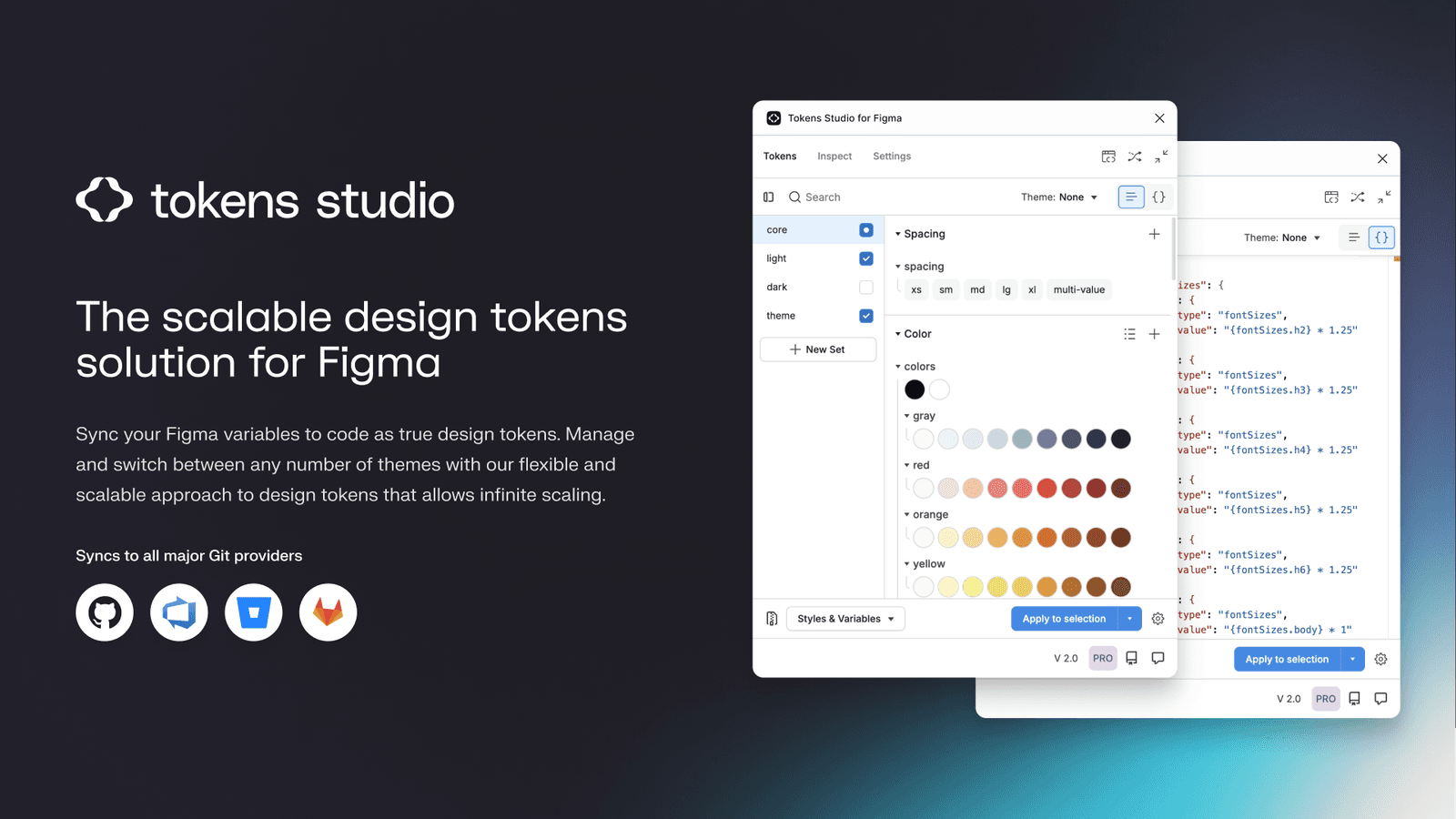
Tokens Studio: Git-Backed Design Tokens in Figma
Tokens Studio treats design tokens like code, using a Git repo as the single source of truth instead of a Figma file. It syncs tokens across files and bridges the gap to developer workflows, enabling a true single source of truth for your design system.
Figma: Order Matters in Chained Actions
Think of Figma actions as a script running sequentially on one trigger. This lets you build complex logic, like updating a variable and navigating based on its new value. The footgun: order is critical, as actions execute top-to-bottom.
Private Plugins: Internal Tools, Not Public Apps
Private Figma plugins are internal tools, not public apps, built for your team's eyes only. Use them to connect to internal APIs or automate workflows with a private design system. The footgun is building one when a simpler script would suffice.
Figma Library Analytics: Measure Your Design System's Impact
Treat your design system like a product by measuring its adoption. Figma's Library Analytics shows which components and styles are actually used, guiding decisions on what to build, improve, or deprecate.
Figma's Organization Plan: Structure and Permissions
Think of a Figma Org as a company-wide container for all design work, providing unlimited teams, SSO, and shared libraries. The main footgun: confusing paid seats with permissions. A seat grants product access, but permissions control a user's actions.
Figma Dev Mode: Visually Diff Your UI
Treat UI changes like a code diff. Figma's Dev Mode lets you visually compare component versions side-by-side or as an overlay. This helps you see exactly what changed between handoffs, preventing drift. The footgun is ignoring the code and property diffs.
Figma Versioning for Clean Developer Handoff
Treat Figma's version history like a Git commit log, not just an undo. Create named versions to give developers a stable, immutable design target for handoff, preventing them from building against a file that's still in flux.
Figma Accessibility Annotations: Spec for Developers
Accessibility annotations embed a11y specs directly into your Figma file, translating visual design into build instructions. They're used during handoff to specify screen reader order and roles. The footgun is inconsistency; use a plugin or a system.

Designing for Reduced Motion
Treat UI animations as an enhancement some users must disable for comfort. The prefers-reduced-motion media query lets you respect system-level accessibility settings, preventing vestibular triggers.
Screen Readers: Designing for a Non-Visual UI
A screen reader navigates your UI's invisible DOM structure, not its visual layout. Think of it as a text adventure where headings are rooms and links are doors. This is essential for all web UIs, checked via alt text and keyboard focus.
We are hiring for this. Every open role lists the topics its interview covers, so you can prepare for the real thing rather than guessing.
See open roles