Concepts in Flutter & Dart, page 3
Flutter's Three Trees: Widget, Element, and RenderObject
Flutter separates UI into three trees. Widgets are cheap blueprints. Elements are the stateful managers that persist across frames. RenderObjects do the expensive layout and painting. Understanding this separation is key to mastering Flutter's performance.
Row and Column: Arranging Widgets Without Scrolling
Think of Row and Column as rigid containers for laying out widgets horizontally or vertically. Use them for simple, fixed layouts like button bars. The footgun: unbounded children like Text will overflow; wrap them in an Expanded widget to fill remaining…

Flutter's Stack: Layering Widgets on Top of Each Other
Flutter's Stack widget lets you overlap children, like layering papers. The first child is at the bottom, the last is on top. Use it for text over images or gradient overlays. The footgun: you can only position children relative to the stack's edges.

Flutter's Container: The Ultimate Box Widget
Think of Container as a customizable box for your UI. It's Flutter's multi-tool for combining layout, styling, and positioning in a single widget. Use it to add padding, margins, borders, or background colors.
Expanded & Flexible: Claiming Space in Flutter Layouts
Expanded and Flexible widgets manage space in a Row or Column. Expanded is greedy, forcing its child to fill all available space. Flexible is polite, allowing its child to grow but not requiring it. Use them to prevent overflow errors.
SingleChildScrollView: When One Widget Needs to Scroll
SingleChildScrollView is an emergency scrollbar for one widget that usually fits on screen. Use it when a layout might overflow on small devices. The footgun: it renders its entire child at once, so never use it for long lists—use ListView instead.
Flutter's Box Constraint System: Parents Rule
In Flutter, parents tell children their size limits, not their size. A widget must obey its parent's constraints (min/max width/height), but it chooses its own size within those bounds. The footgun is trying to size a child widget against its parent's rules.
MediaQuery: Reading Device Properties Efficiently
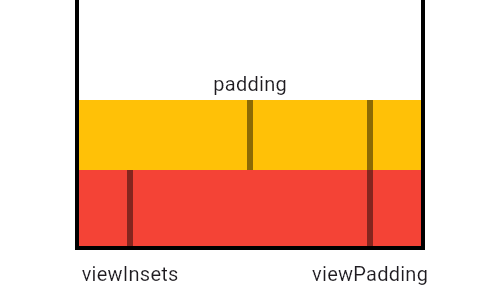
MediaQuery is your widget's window to the device, providing screen size, orientation, and safe areas. Use it to build responsive UIs that avoid system elements like notches or the keyboard. The footgun: MediaQuery.of(context) rebuilds on any change.
LayoutBuilder: Build Widgets Based on Parent Size
LayoutBuilder lets your widget ask its parent "how much space do I have?" before deciding what to build. Use it for responsive layouts, like showing a Row on wide screens and a Column on narrow ones.
Flutter's Wrap Widget: The Row That Won't Overflow
Flutter's Wrap widget is like text-wrapping for your UI. It arranges children in a row or column, automatically flowing them onto a new line when space runs out. It's perfect for dynamic lists of tags or chips.
Flutter's FittedBox: Scale Any Widget to Fit
FittedBox scales its single child to fit an allocated space, like CSS's object-fit but for any widget. It's perfect for making an icon fill a button or ensuring text fits a container. The footgun: it fails in unconstrained parents like a Row or Column.
AspectRatio: Forcing a Widget's Proportions
AspectRatio forces a child widget to maintain a specific width-to-height ratio, like a 16:9 video player. Use it for image placeholders or video frames. The footgun: it fails in unconstrained parents like FittedBox; use SizedBox there instead.
CustomSingleChildLayout: Parent-Driven Layout
CustomSingleChildLayout lets a parent widget dictate its child's size and position, ignoring the child's intrinsic size. Use it for layouts where the parent's dimensions are independent, like a custom overlay.
CustomMultiChildLayout: A Delegate for Complex Layouts
CustomMultiChildLayout gives a delegate total control to size and position multiple children. It's for complex layouts where widgets relate to each other, like a radial menu. The key footgun: the parent's size cannot depend on the sizes of its children.
IntrinsicHeight/Width: Sizing by 'Natural' Dimensions
IntrinsicHeight/Width tells a child widget to size itself to its "natural" dimensions, rather than expanding to fill available space. It's useful for making all items in a Row match the tallest item's height, but it's expensive and should be avoided.
GestureDetector: Making Any Widget Interactive
GestureDetector is an invisible wrapper that makes any widget interactive. Use it to add an onTap to a Container or custom widget. The biggest footgun: when nested, only the innermost detector's callback for a given gesture will fire.
Flutter's Three Main Material Buttons
Flutter's Material buttons signal emphasis. Use ElevatedButton for primary actions (Save), OutlinedButton for secondary (Next), and TextButton for tertiary (Cancel). The footgun is choosing a button for its looks, not its place in the action hierarchy.
Flutter's TextField: Capturing User Input
Flutter's TextField is the standard widget for user text input. Use it for search bars or login forms, and manage its state with a TextEditingController for full control. The biggest footgun is forgetting to dispose its controller, causing memory leaks.
TextEditingController: Syncing UI and Code for Text Fields
A TextEditingController is the two-way link between your code and a text field's state. Use it to read user input, set initial text, or move the cursor. A common footgun is forgetting to call dispose() on the controller, which leads to memory leaks.
InkWell: Adding Material Splash Effects
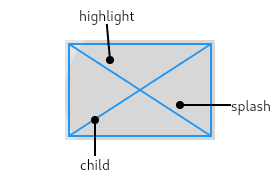
InkWell adds a Material Design 'splash' effect to any widget on tap. Think of it as ink spreading inside the surface you touch. Use it to make non-interactive widgets like images respond to taps. The splash won't appear if an opaque widget is between it.
We are hiring for this. Every open role lists the topics its interview covers, so you can prepare for the real thing rather than guessing.
See open roles